Printer Offline
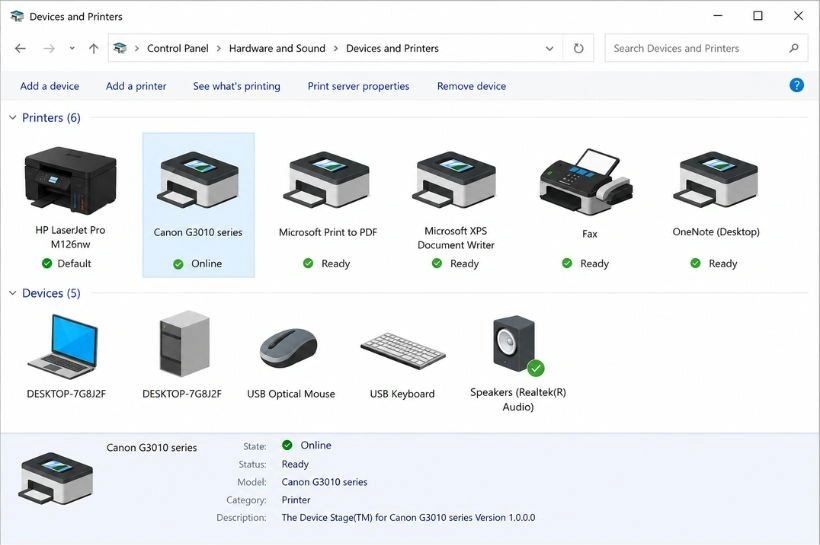
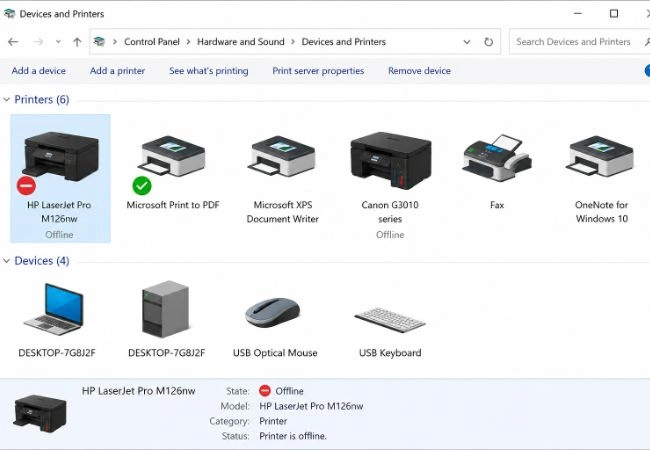
The printer appears in Devices & Printers, but the status says Offline. This usually means the computer can see the printer record, but the current communication path is not active.
A simple educational visual guide explaining printer offline status, driver unavailable messages, print queue behavior, USB detection, Wi-Fi printer search, and printer communication flow.
What users usually see
These examples explain common printer screens in a learning context, so readers can understand what the message usually points to before reading the detailed guide.
The printer appears in Devices & Printers, but the status says Offline. This usually means the computer can see the printer record, but the current communication path is not active.
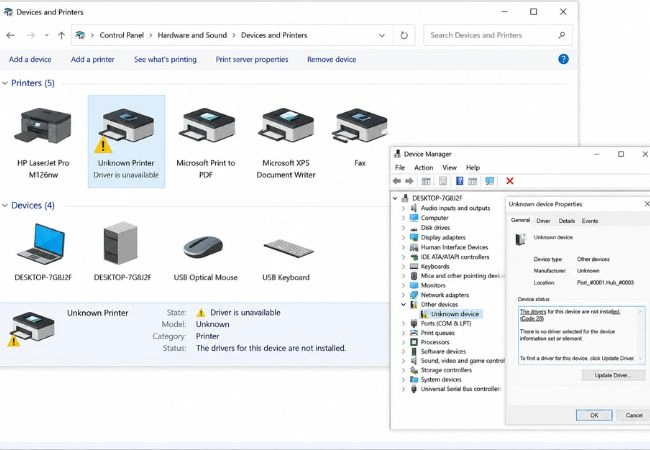
The computer may show driver unavailable, unknown device, or a warning symbol. This means the system does not have the right software layer to communicate with the printer properly.
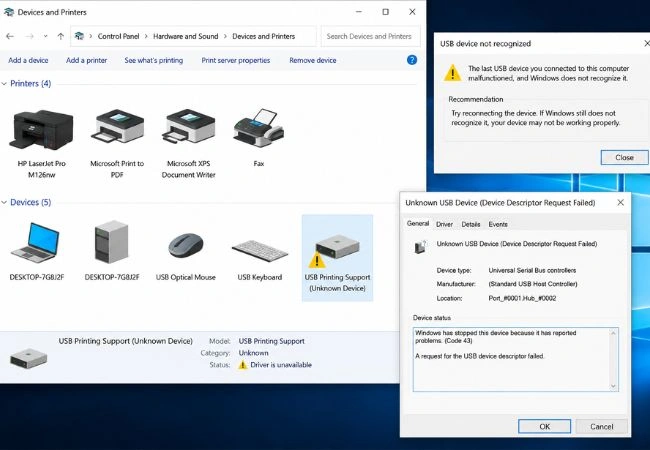
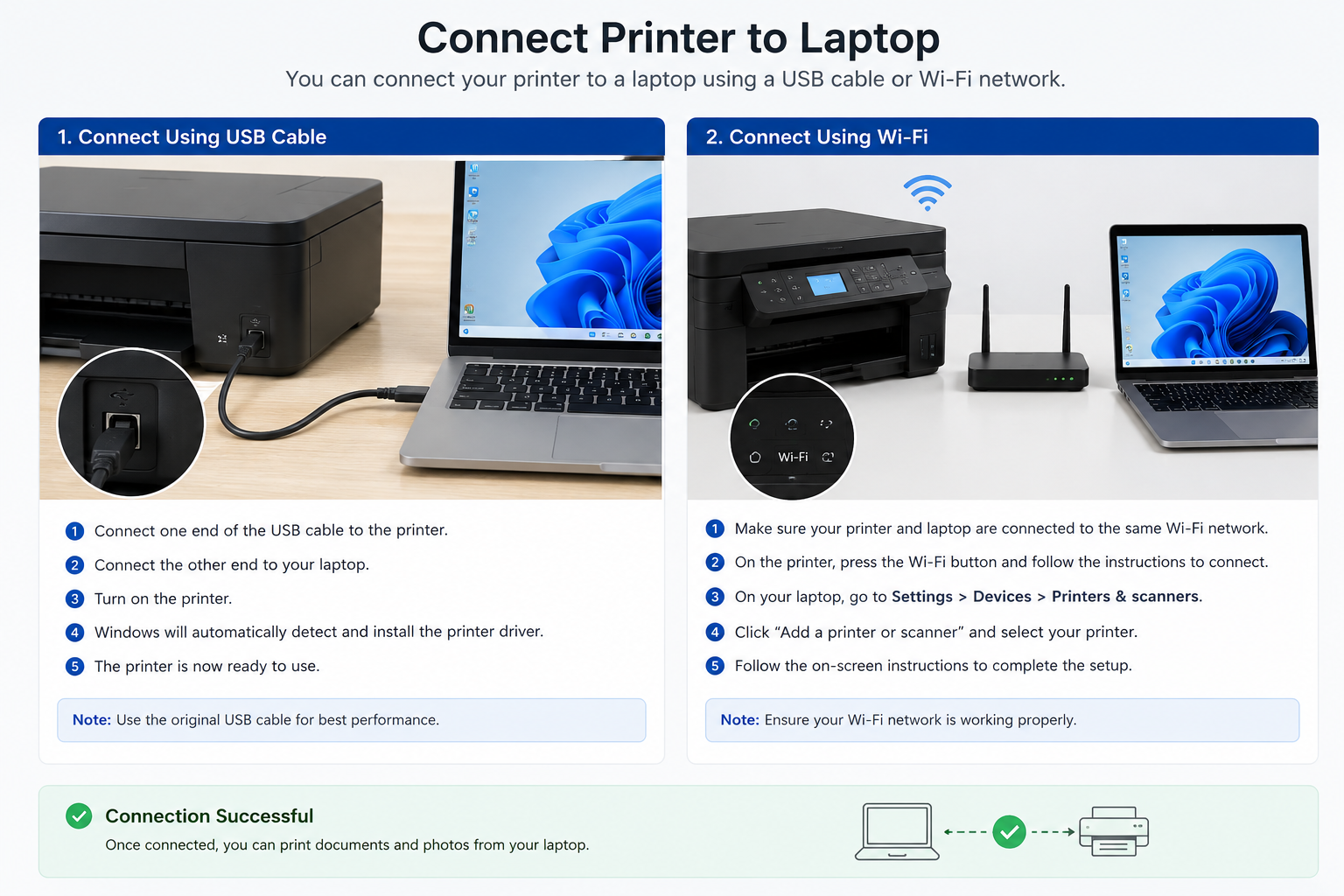
A USB printer may be connected, but the computer may not detect it correctly. This can relate to cable connection, USB port behavior, or device recognition.
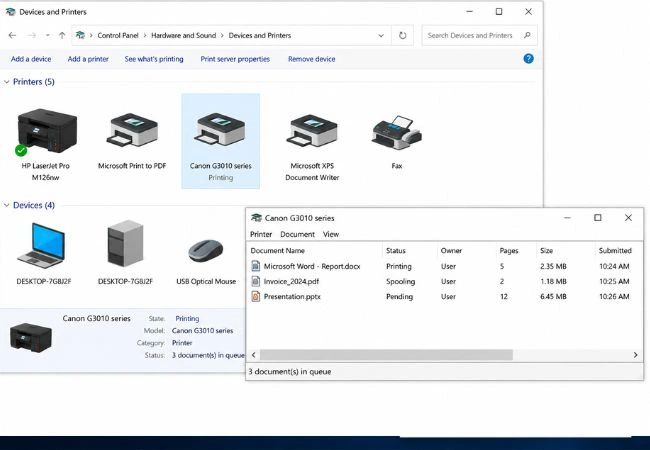
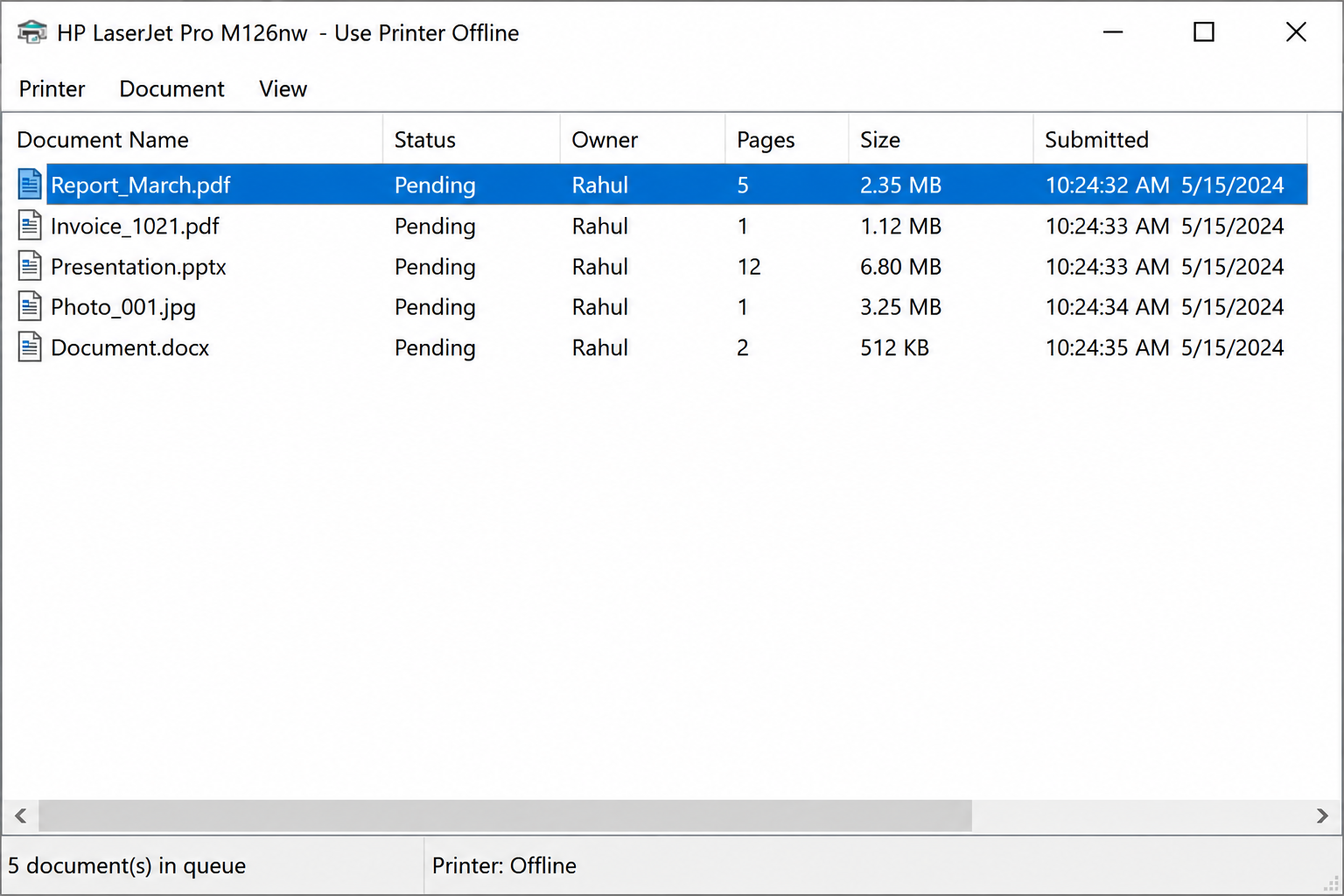
Old documents may remain pending and block new print jobs. The print queue shows the order of print requests and whether any job is paused, stuck, or waiting.
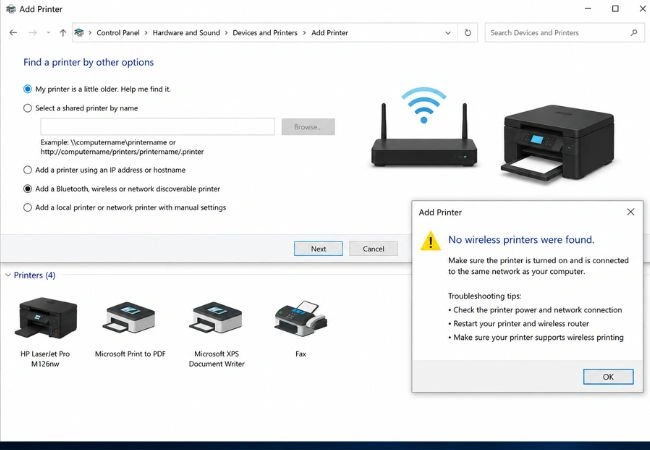
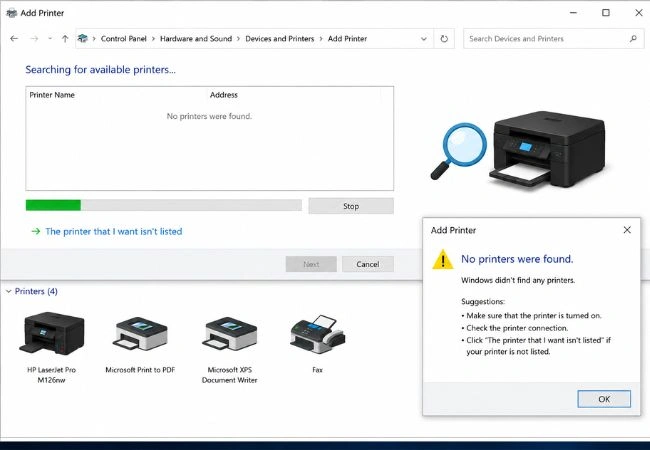
A wireless printer may be powered on but not appear during search. This usually relates to network visibility, same Wi-Fi connection, or printer discovery behavior.
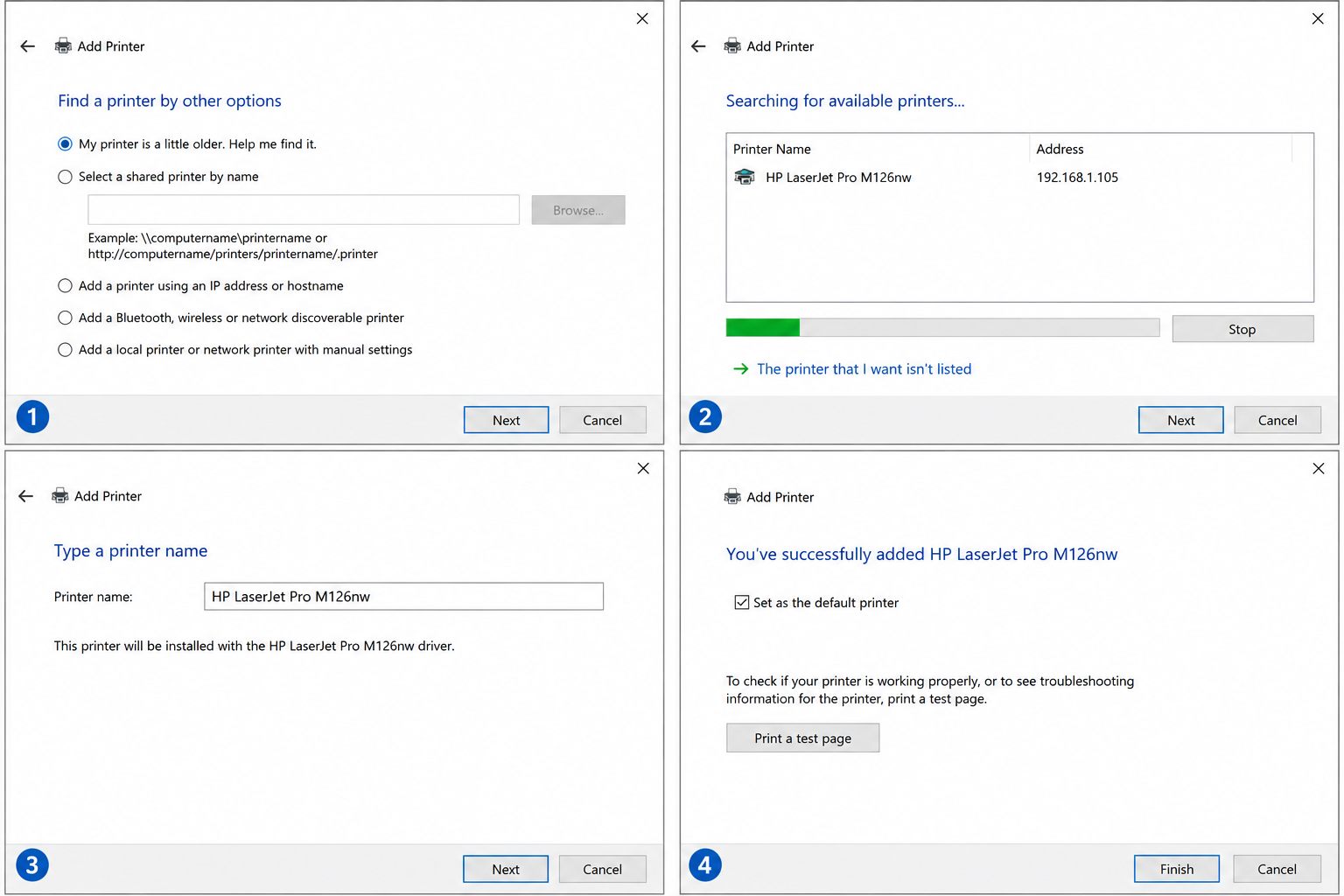
The Add Printer screen may not show the model immediately. The system usually searches available USB, network, or wireless printer paths before listing a device.
Control panel style guide
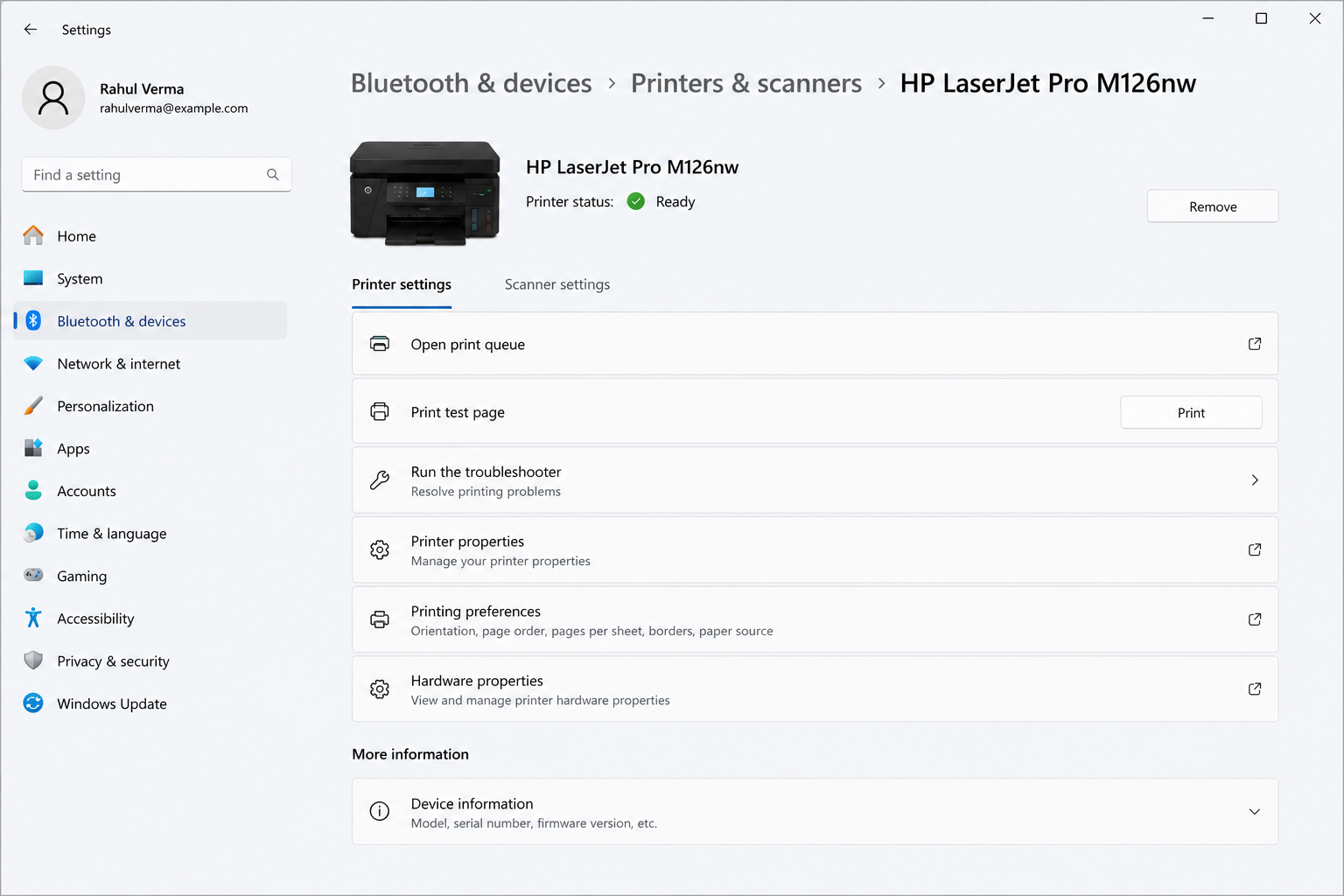
Printer settings, Devices & Printers, print queue, and Device Manager are common areas where printer status and driver information appear.
Shows connected printers and their basic status.
Shows pending, paused, or failed print requests.
Shows unknown device or missing driver warnings.
Printer learning basics
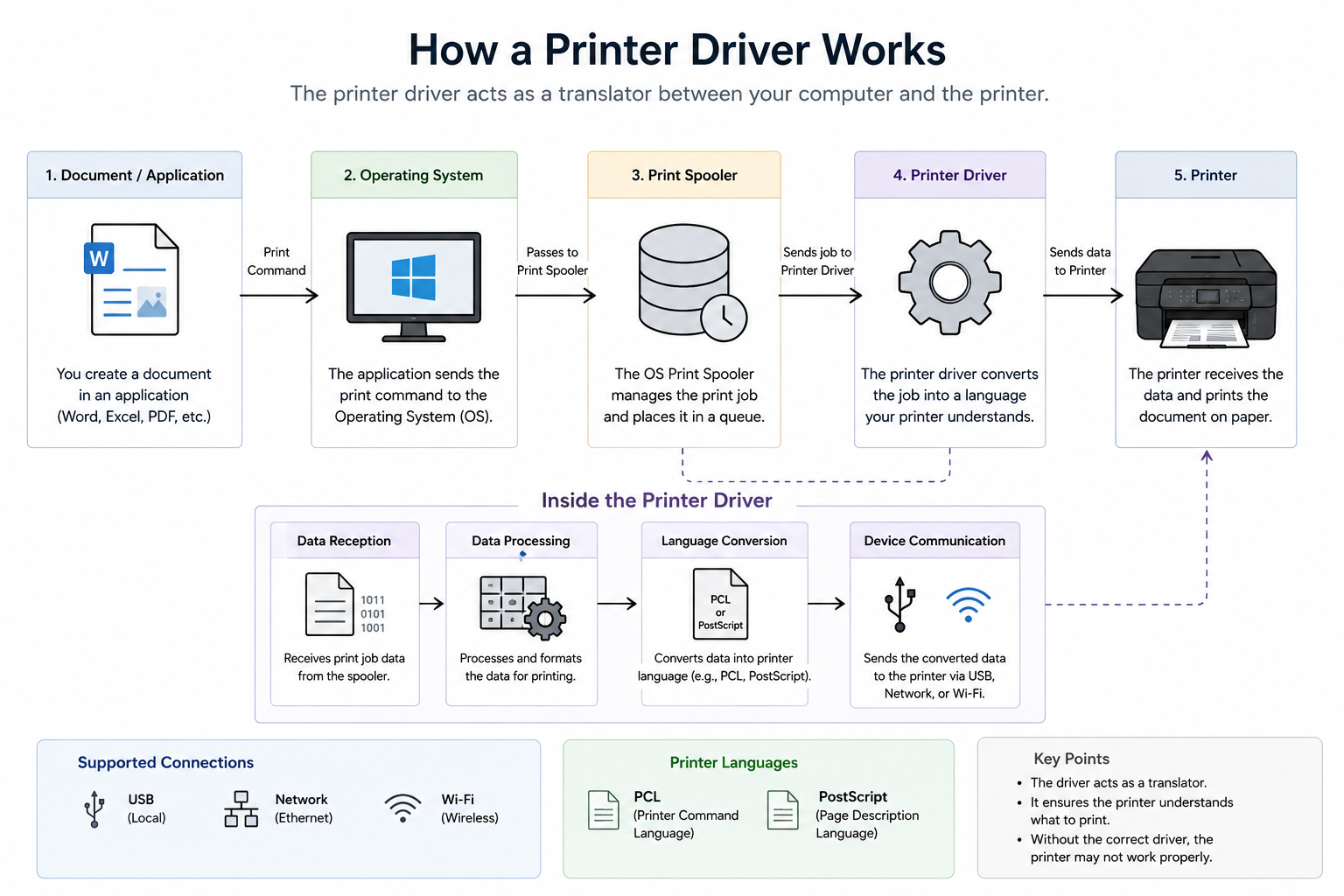
Before understanding offline messages, driver warnings, or print queue issues, it helps to understand the normal printer communication path. A printer usually needs a connection path, a driver, and an active print queue before documents can move from the computer to the printer.
USB, Wi-Fi, or network path lets the computer find the printer.
The driver helps the operating system talk to the printer.
Print jobs wait in order before the printer processes them.
Common signs users may notice
Printer appears in the list but shows offline or unavailable.
Driver unavailable, unknown device, or warning symbol appears.
Documents remain pending and new print jobs do not continue.
Wireless printer does not appear during printer search.
Driver installation flow
These steps explain the normal learning flow: connection, settings, driver communication, print queue, and test page.
Plug USB cable or connect printer to WiFi network.
Go to printer settings or Devices & Printers area.
Choose Add Printer and let computer search for available printer.
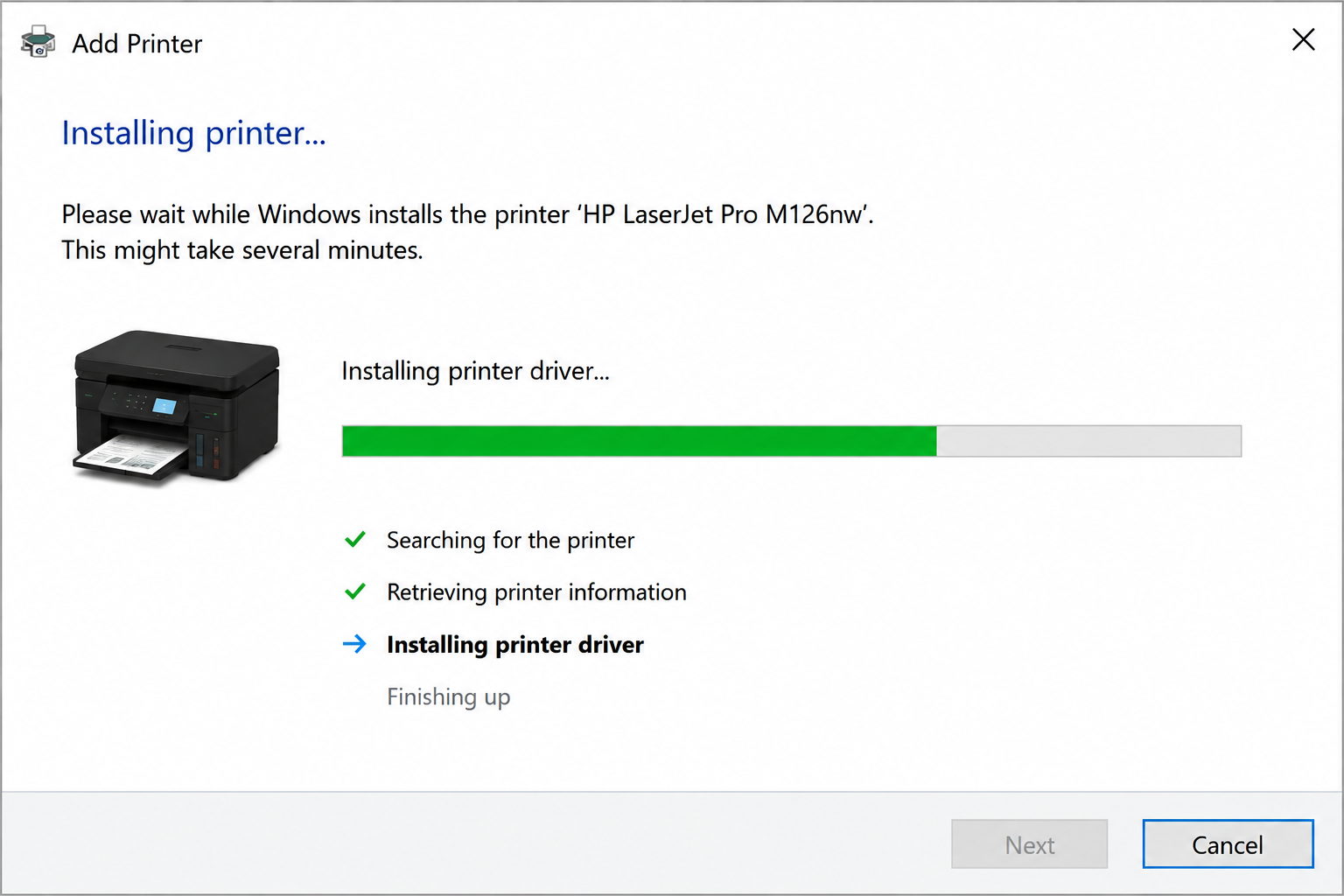
System uses a driver so printer and computer can communicate.
Clear old jobs if print requests are stuck.
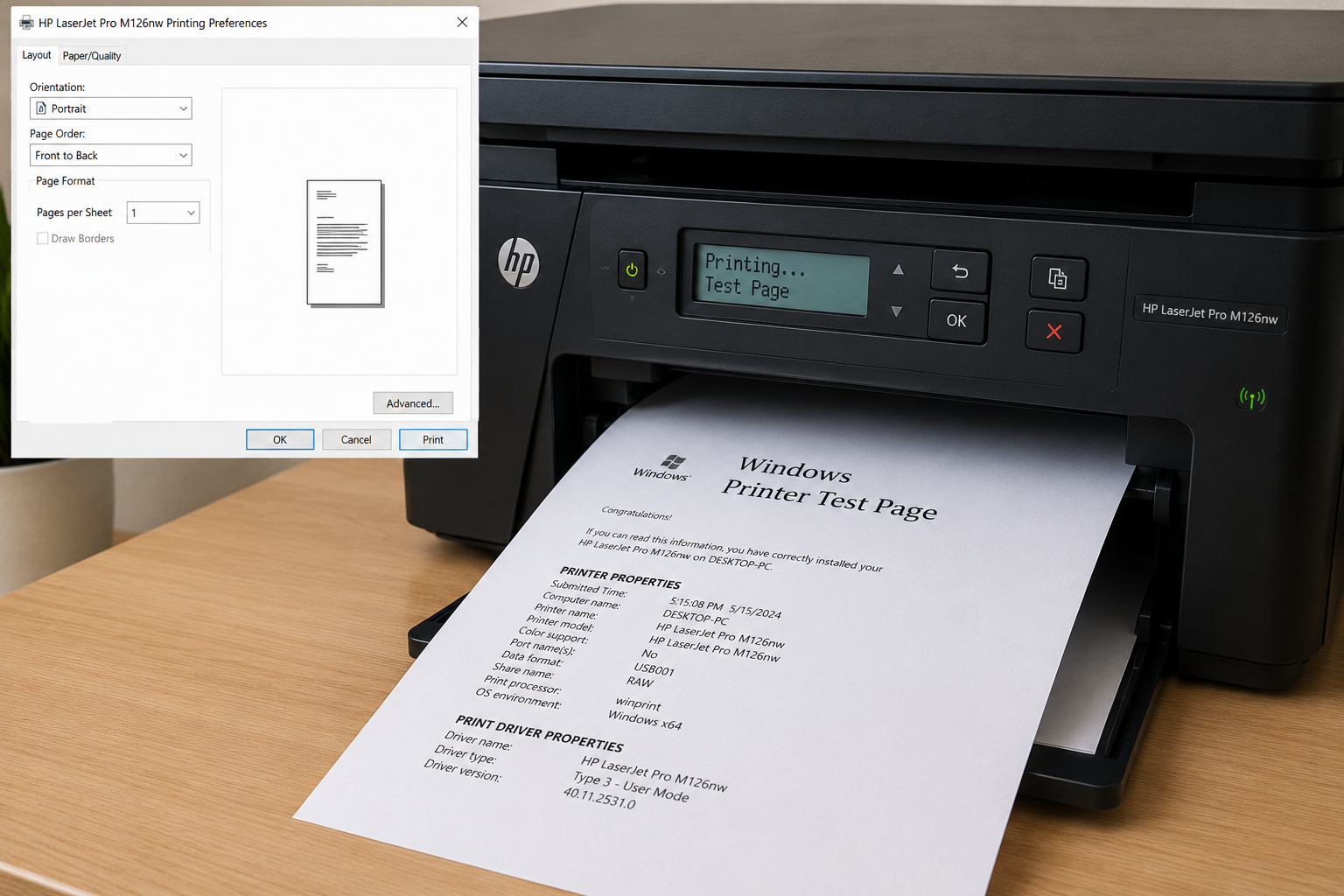
Send a test page to confirm the printer path works.
What a driver does
When you click print, the document does not directly go to the printer. The driver helps convert the document into instructions the printer understands.
Printer driver facts
These notes explain why a printer may need a driver, why queues exist, and why connection methods can affect printer visibility.
Drivers allow operating systems and printer hardware to exchange instructions.
Print requests are normally stored in a queue before they are processed.
Printers may communicate through USB, Ethernet, or Wi-Fi connections.
Quick checklist
This checklist is for learning and awareness only. It helps readers understand the common order in which printer connection topics are usually reviewed.
Power light, display, and printer ready state.
Reconnect USB cable or check same WiFi network.
Check printer list in settings or Control Panel.
Driver missing can show printer unavailable.
Old stuck jobs can block new print requests.
Test page confirms basic communication path.
Related learning topics
Official reading sources
This page is written as an educational guide. Printer screens, driver messages, and setup options may vary by Windows version and printer model, so readers should compare general learning content with official documentation.
Status meanings
A printer screen may show several different status words. Each word points to a different part of the printer communication path.
Detailed explanation
A printer does not work as a single isolated device when it is used from a computer. It depends on a chain of communication. The computer prepares the document, the printer driver converts the document into printer instructions, the print queue organizes the job, and the connection path sends the job to the printer.
When a printer appears offline, the computer is usually reporting that one part of this chain is not responding clearly. The printer may still be powered on, but Windows may not be able to confirm its ready state through the saved printer profile.
Driver missing messages are different from offline status. A driver message usually means Windows does not currently have the correct software layer for that printer. Without the driver layer, the system may not understand paper sizes, color settings, print quality options, scanner features, or layout commands.
Print queue messages are also important. A queue stores print jobs before they reach the printer. If an older job remains pending, paused, or blocked, later documents may wait behind it. This can make users think the printer is not responding even when the issue is related to queue behavior.
Wireless printers add another layer because they depend on router visibility and local network discovery. A printer and computer may both be connected to Wi-Fi, but if they are on different networks or the printer cannot be discovered, the printer may not appear during search.
Common questions
It usually means the computer cannot currently communicate with the printer through the expected connection path.
No. Offline status is a communication message and does not automatically mean the printer hardware is damaged.
A printer driver is software that helps the operating system communicate with printer features and commands.
It usually means Windows does not currently have the needed driver layer for that printer model.
The queue stores print jobs. If one job remains pending or paused, later jobs may wait behind it.
Yes. Wireless printers depend on router visibility, same-network communication, and local device discovery.
USB detection can depend on cable condition, port behavior, device recognition, and driver availability.
No. This page is educational reading only. It does not provide phone support, remote access, repair, installation, or paid troubleshooting.
Educational note
Mister Learner provides educational reading only. This page does not offer live support, phone support, remote access, repair service, driver installation service, or paid troubleshooting.
Continue learning
Explore related educational guides about audio, graphics, network, USB, chipset, Bluetooth, and other driver topics.